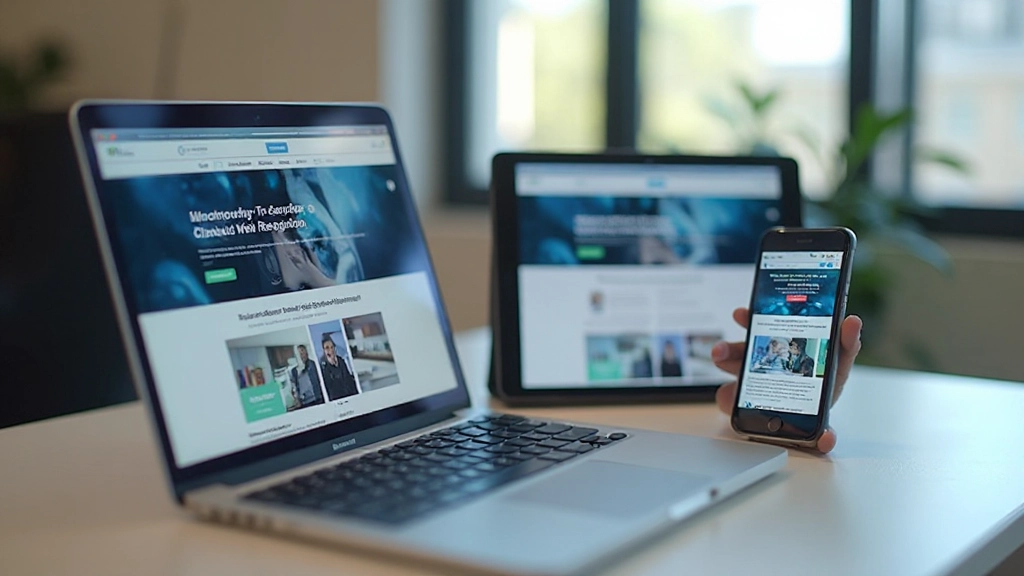
Testing Your Mobile Design: Tools & Methods That Actually Work
Moving beyond browser preview. Real testing approaches including actual devices, emulators, and techniques for catching issues before users do.

Why Testing on Real Devices Matters
Browser preview tools are convenient. They’re fast, they’re built into your IDE, and they show you what your design looks like at different screen sizes. But here’s the thing — they’re not real.
A real phone has its own quirks. Touch interactions feel different. Network speeds vary. Operating systems handle things like notches, rounded corners, and safe areas in ways that desktop browsers can’t fully replicate. You need to test on actual hardware.
We’ve tested hundreds of designs across different devices, and the gap between what looks good in Chrome DevTools and what actually works on a user’s phone is real. That’s why we’re breaking down the tools and methods that catch real problems.

Three Testing Approaches That Work
Each has tradeoffs. Use them together for comprehensive coverage.
Real Devices
Actual phones and tablets. This is the gold standard. You get real network conditions, real touch interactions, real performance. The downside? It’s slow and you can’t test on every device that exists. Start with devices your users actually use.
Emulators & Simulators
Android Studio emulator or Xcode simulator. Fast, free, and you can test many device configurations. They’re not perfect — performance testing isn’t realistic — but they’re great for layout, touch behavior, and OS-specific features like status bars.
Remote Device Labs
Services like BrowserStack or Sauce Labs let you control actual devices remotely. You get real hardware without buying them. They’re pricier, but if you need to test 20+ device combinations, this scales better than juggling physical phones.
Tools That Make Testing Faster
You don’t need expensive software. Most of what you need is either built-in or free. Here’s what we use daily.
Chrome DevTools
Built right into Chrome. The device emulation isn’t perfect, but it’s fast for quick checks. More importantly, you can throttle network speeds (simulate 4G, 3G) and see how your site loads under realistic conditions. Most performance issues show up here first.
Android Studio Emulator
Free. You can test multiple Android versions and devices without owning them. Takes a minute to load, but once it’s running, you get real Android behavior — status bars, navigation, the way the OS handles overflow. Essential if your users are primarily on Android.
ngrok or Local Tunnel
Get your local development server accessible from your phone. Instead of deploying to staging just to test, you tunnel to localhost. This cuts testing time dramatically. Set it up once, test everything locally.


A Testing Workflow That Catches Problems
Here’s how we structure testing. It’s not complicated, but it’s systematic.
Emulator First
Test layout, navigation, and touch targets in the Android emulator. This takes 10 minutes and catches most layout problems. You’re checking if buttons are tappable, if text is readable, if your grid breaks at the right points.
Real Phone Test
Grab an actual device. Test the same workflows. Does scrolling feel smooth? Does the keyboard overlap content? Can you actually tap the buttons, or do your finger sizes make them too small? Real touch reveals problems emulators miss.
Network Throttling
Use DevTools to throttle to 4G or 3G. Load your site. Does it feel sluggish? Do images take forever? Are there layout shifts while content loads? This is where you discover that you forgot to set image dimensions, or your JavaScript bundle is too large.
Document Issues
Screenshot or record video. Note which device, which OS version, what the issue is. This matters because sometimes a problem only shows on iOS 16 or on a specific screen size. Documentation means you don’t fix the same bug twice.
Five Techniques That Reveal Hidden Issues
Beyond just looking at your site, actively test these scenarios.
Test with One Hand
Can you navigate your site with your thumb while holding the phone? Buttons at the top of the screen become hard to reach. Your important CTAs shouldn’t be there. Test this actually holding the device — you’ll notice things desktop testing misses.
Test in Sunlight
Contrast that looks fine indoors might be illegible in sunlight. Walk outside and check. Light backgrounds with light text become unreadable. This is why dark modes exist — and why you need to test both.
Test with System Zoom
Many users increase their system font size. Test with 130% or 150% zoom enabled. Does your layout still work? Do buttons still fit? Do images scale properly? This catches text overflow and layout issues quickly.
Test with Slow Networks
Not everyone has 5G. Throttle to 3G in DevTools and actually use your site. How long does it take to load? Does the interface feel responsive? Do you show loading states? Real users will hit slow networks.
Test on Different Browsers
Chrome, Safari, Firefox, Samsung Internet — they handle CSS and JavaScript slightly differently. A feature works great in Chrome but breaks in Safari. You won’t know unless you test. Especially important for bleeding-edge CSS features.
Test Orientation Changes
Rotate your phone. Does the layout reflow correctly? Do videos resize? Do fixed headers stay usable? Orientation changes are quick but they reveal whether your media queries actually work.
What You Can Automate (And What You Can’t)
Manual testing catches problems automation misses. But you don’t want to test the same thing 50 times. Here’s what works.
Automate These
- Responsive breakpoints — screenshot testing at 320px, 768px, 1024px
- Contrast ratios — automated tools check WCAG compliance
- Performance metrics — Lighthouse scores, load times, Core Web Vitals
- Link checks — make sure nothing’s broken
- Form validation — does error handling work correctly
These tools (Lighthouse, WebAIM, Percy) run in your CI/CD pipeline and catch regressions automatically.
Manual Testing Still Matters
- User experience — does it feel good to use, or clunky?
- Touch interactions — do buttons feel responsive to your finger?
- Real network conditions — how does it behave on actual 4G?
- Edge cases — unusual orientations, unusual device combinations
- Readability — does the text actually feel comfortable to read on a phone?

Testing Isn’t Optional. It’s How You Ship Confidence.
The best mobile designs aren’t the ones that look good in screenshots. They’re the ones that work smoothly when a real person picks up their phone, opens your site, and just… uses it.
You don’t need expensive tools or a massive device lab to start. Grab an emulator. Borrow a friend’s phone. Throttle your network. Rotate your device. Test in sunlight. These simple steps catch 80% of problems before your users ever see them.
Testing on real devices isn’t a nice-to-have. It’s how you ensure your mobile design actually works for the people using it.
Explore More Mobile Design ArticlesAbout This Article
This article provides educational information about mobile design testing methods and tools. The techniques and approaches described are based on industry practices and common testing workflows. Your specific testing needs may vary depending on your project requirements, user base, and available resources. Always test your designs on actual devices with your target users when possible. Testing methodologies evolve, and new tools emerge regularly — stay current with testing best practices in your field.